How to Create a Digital Business Card
with a QR Code — Free, 2026
A practical, step-by-step guide to building a digital business card that works on any printed card, opens instantly on any phone, and costs nothing.
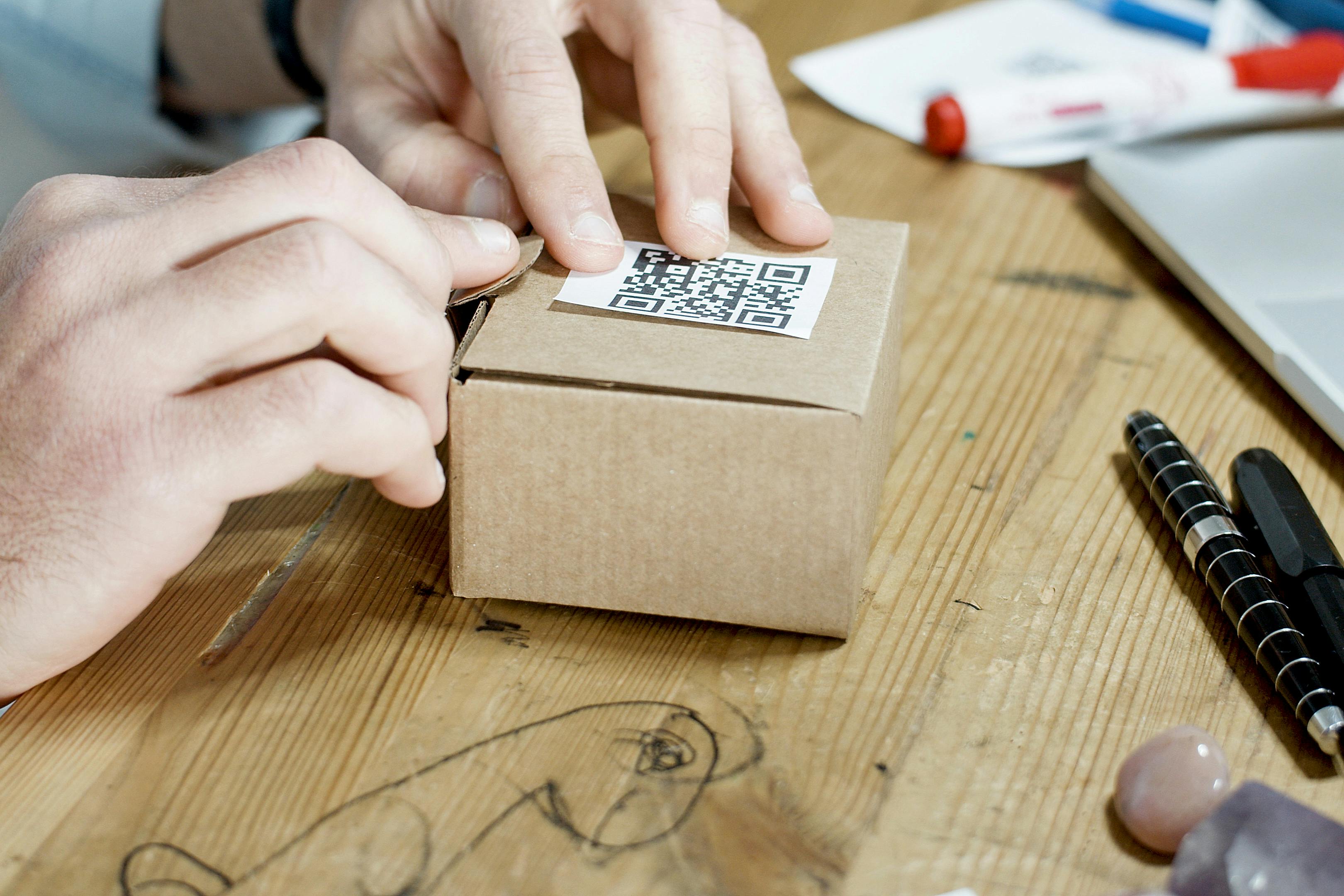
The ritual of swapping business cards hasn't changed in decades — but what happens after the swap has. Cards get lost. Details go out of date. Nobody enjoys typing a phone number from a piece of paper in 2026.
A digital business card with a QR code solves all of this. You keep the physical card — the tactile, professional first impression — but you add a scannable code that does the heavy lifting: instant contact saving, social links, bio, and more.
This guide covers everything: what a digital business card QR code is, how to create one for free in minutes, and the design rules that make it work reliably in print.
What is a Digital Business Card with a QR Code?
A digital business card with a QR code is exactly what it sounds like: a physical or digital card that contains a QR code. When someone scans it with their phone camera, they see a page — or receive a prompt — with your full contact information.
The most common format is a vCard QR code. vCard is a universal standard for digital contact exchange. Every modern smartphone (iOS and Android) can read a vCard QR code natively, without any app. Point your camera, scan, and your contact is saved.
More advanced versions link to a hosted digital card page — a mobile-optimised profile that shows your photo, job title, links, and a save-to-contacts button.
Key distinction: A vCard QR code stores your data inside the code itself. A linked card points to a URL where the data lives. For most people printing business cards, a vCard QR code is the better choice — it works without internet, and your data doesn't depend on any third-party server staying online.
How to Create a Digital Business Card with a QR Code (Step by Step)
Go to the QRSwift Card Builder
Head to qrswift.store/digital-business-card. No account, no email, nothing to install. The builder runs entirely in your browser.
Fill in your details
Enter your name, job title, company, phone, email, and website. You can also upload a profile photo and add a short bio. Social links — LinkedIn, Twitter/X, Instagram, GitHub, and WhatsApp — are optional but worth adding.
The live preview updates instantly as you type, so you can see exactly what your card will look like to someone who scans it.
Choose a colour theme
Pick from six themes: Dark, Light, Ocean, Violet, Forest, or Sunset. Each is designed to look polished on both screens and as a reference design for your physical card. The theme affects the digital card your contacts see when they scan — not the QR code itself, which is always black and white for maximum scannability.
Generate and download your QR code
Click "Generate QR Code". Your code is created instantly. Download it as a PNG (best for most print services) or SVG (fully scalable for designers). That's it — no watermark, no account required.
Add it to your printed card
Drop the QR code file into your card design (Canva, Adobe Illustrator, Word, or your printer's template). Place it on the back of the card with a short call to action — "Scan to save my contact" is clear and effective.
What Your Contacts See When They Scan It
When someone scans your vCard QR code, their phone camera recognises the format and prompts them to add a new contact — with all your details pre-filled. Name, phone, email, company, website, and notes all appear instantly. One tap to save.
If you've used the QRSwift card builder, they'll also see a styled digital card in their browser with your photo, bio, and social links — giving them a full picture of who you are before they decide to save your number.
Design Rules for QR Codes on Business Cards
A badly designed QR code on a business card is worse than no QR code at all — it creates a bad impression and fails to scan. Follow these rules:
Minimum size: 2.5 cm × 2.5 cm
This is the floor, not the target. Aim for 3 cm × 3 cm if your card layout allows it. Too small and the code becomes unreliable, especially in low light or on cheap prints.
High contrast is non-negotiable
Black QR code on white background is the gold standard. If your design uses a coloured background, ensure the code module colour has a contrast ratio of at least 4:1 against the background. Test before you print.
Never distort the QR code
A QR code must be square. Stretching it — even slightly — can make it unscannable. When placing it in your design, hold Shift to maintain the aspect ratio.
Add a quiet zone
A quiet zone is the white border around the QR code. Most generators (including QRSwift) include this automatically. If you're placing the code close to other design elements, make sure there's at least 4 modules of clear space on all sides.
Include a short call to action
Most people don't spontaneously scan QR codes on business cards — they need a nudge. A line like "Scan to save my contact" or "Scan for my full profile" converts curious people into actual scans.
Front or Back? Where to Place Your QR Code
Place the QR code on the back of your business card in most cases. This keeps the front clean — your name, title, and company are the first impression, and they should have space to breathe. The back becomes the functional layer.
Exceptions: if you're designing a minimal single-sided card, the QR can sit in a corner on the front. Just don't let it compete with your name for visual attention.
vCard vs URL: Which Format Should You Use?
vCard QR code (recommended for most people)
The data lives inside the QR code itself. Works offline. No dependency on any website or service staying online. The contact-saving experience is immediate and native — no browser required. The downside: if your details change, you need to regenerate and reprint.
URL QR code
Links to a page on the web. You can update the page anytime without reprinting your card. Better for people whose details change often, or who want analytics on how many times the code was scanned. Requires internet connection to work.
For most professionals printing a batch of cards, vCard is the right call. The offline reliability and native save-to-contacts experience is hard to beat.
Privacy: Is My Data Safe?
When you use the QRSwift card builder, your data never touches a server. Everything — the form fields, your photo, the QR generation — runs entirely in your browser. There's nothing to breach, because nothing is stored.
The vCard is embedded in the QR code image you download. That image is just a file on your computer. No account, no cloud, no data retention.
Frequently Asked Questions
What is a digital business card with a QR code?
A digital business card with a QR code is a physical or digital card that includes a scannable code. When scanned, it delivers your contact details to the person's phone — ready to save in one tap.
Is it free to create a digital business card with a QR code?
Yes. QRSwift's card builder is completely free. No account, no watermark, no expiry. Build your card and download the QR code instantly at qrswift.store/digital-business-card.
What size should a QR code be on a business card?
A minimum of 2.5 cm × 2.5 cm (roughly 1 inch square) ensures reliable scanning across different phone models and lighting conditions.
Do I need an app to scan a digital business card QR code?
No. Any modern smartphone camera on iOS or Android can scan a vCard QR code natively. Just open the camera, point at the code, and tap the notification that appears.
Ready to create yours?
Build your digital business card in under two minutes. Free, no sign-up, no watermark.
Create Your Card Free →